 How-to
How to Get Rideshare Driver Support: 2026 Driver Guide
Table of Contents
- Before You Contact Rideshare Driver Support: What to Prepare
- How to Contact Uber Driver Support in App
- The Lyft Driver Support Phone Number and When to Call
- Chat, Messaging, and Social Media Support Channels
- Rideshare Driver Payment Issue Support: Escalation Path
- Rideshare Driver Support Message Template That Gets Results
- Response Times, Follow-Up, and Regional Availability
- Frequently Asked Questions
Last Updated: October 18, 2026
Before You Contact Rideshare Driver Support: What to Prepare
Getting a fast answer from rideshare driver support starts before you open the app. This guide from ZENDARYDE walks through every route available to drivers in 2026, from in-app help to phone lines and social media.
Here's the hard truth most drivers learn the slow way: support agents can only act on what you can prove. A vague message like "my payout is wrong" gets a generic reply. A message with a trip ID, a timestamp, and a screenshot gets escalated.
Gather these before you reach out:
- Driver account email and phone number linked to your profile
- Trip or delivery ID for the ride in question
- Date, time, and pickup location of the trip
- Screenshots of the fare breakdown, payout summary, or error message
- A short written timeline of what happened and when
- Your vehicle and plate details, if the issue involves a vehicle or document review
The Federal Trade Commission's guidance on resolving consumer complaints offers a useful reminder for any dispute: keep records and put your complaint in writing. That habit serves drivers well too.
How to Contact Uber Driver Support in App
In-app help is the fastest route for most Uber drivers. The Help menu inside the driver app connects you to issue-specific support without a phone call.
Here is the sequence most drivers use:
- Open the driver app and tap the menu icon
- Select Help or Support
- Choose the topic that matches your issue
- Follow the prompts to a specific trip or payout
- Submit your request or request a callback
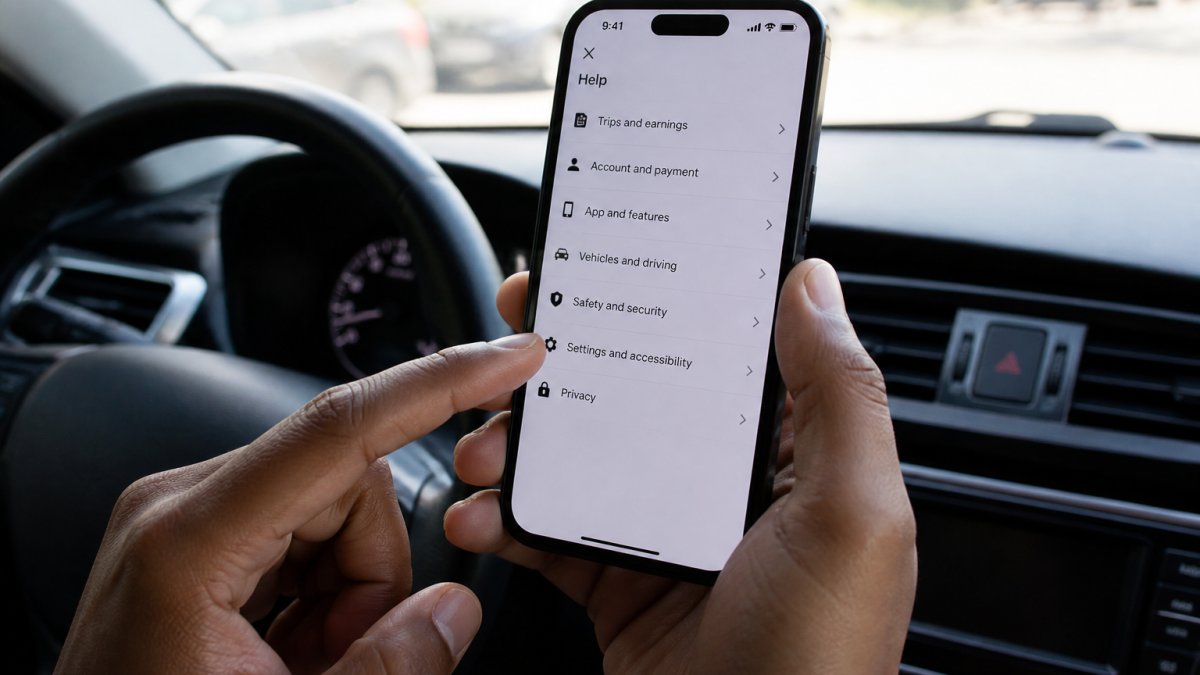
Step-by-Step: Opening Help From the Driver App
Tap the menu in the top corner of the driver app, then choose Help. From there, pick the category closest to your problem: trips, earnings, account, or vehicle. The app narrows your options as you go, which is why choosing the right starting category matters more than typing a long description.
Reporting an Issue From a Recent Trip
Open your trip history, select the trip, and tap the help option attached to that trip. Reporting from inside the trip record attaches the trip ID automatically, which saves a round of back-and-forth. Do this within a few days of the trip while the record is easy to find.
The Lyft Driver Support Phone Number and When to Call
Lyft publishes a driver support phone line inside the app and on its official help pages, and the number can change, so always pull it from the app rather than a forum post. Phone support suits urgent problems: an active ride going wrong, a safety concern, or an account lockout.
For routine questions, the app's help center is usually faster. Phone queues spike during peak hours, and an agent reading a script may just point you back to the same help article.
Chat, Messaging, and Social Media Support Channels
Chat and messaging sit between self-service and a phone call, but the channel you pick should depend on the problem, not on which button is easiest to find.
Use this routing guide before you send anything:
| Driver issue | Best first channel | Why |
|---|---|---|
| Fare, tip, or payout discrepancy | In-app chat under Earnings/Payments | Attaches trip and payout records automatically |
| Account locked or login failure | Social media direct message or web form | You may not be able to reach in-app help at all |
| Document or vehicle review rejection | In-app chat under Account/Vehicle | Lets you re-upload clear photos in the same thread |
| Safety concern during or after a trip | In-app safety tools first, then chat | Creates a timestamped safety record |
| Lost item | In-app trip help | Routes to the trip record and the rider contact process |
| App bug or outage | Social media direct message | Works when the app itself is down |
| Detailed dispute needing a paper trail | Email or web form | Gives you a written record you can forward |
In-app chat is the default for anything tied to a trip, a payout, or a document.
Social media direct messages are best treated as an access channel, not a resolution channel.
Email and web forms are slower but produce the cleanest record.
Before you open any chat, paste your trip ID and a one-line summary into your phone's notes app. You can paste it into every channel you try, which keeps your story consistent and saves typing if the first channel does not resolve the issue.
Match the channel to the issue: in-app chat for trip and pay records, social media only when you cannot get into the app, and email when you need a written trail.
Rideshare Driver Payment Issue Support: Escalation Path
Payment problems need a different route than trip complaints. Earnings disputes, missing tips, and deposit delays should go through the earnings or payments category, not general trip help.
Follow this escalation path:
| Step | Action | Typical Timing |
|---|---|---|
| 1 | Check the earnings breakdown in the app | Same day |
| 2 | Submit an in-app payment ticket with screenshots | Within 48 hours |
| 3 | Reply to the ticket with new evidence, do not open a new one | 3-5 days |
| 4 | Request a callback or escalation in the same thread | After first reply |
| 5 | Contact your bank for deposit tracing | If the app shows paid |
Opening a fresh ticket for the same issue resets your place in the queue. Stay in one thread.
Drivers on ZENDARYDE get a simpler version of this process. Our driver-first payout model sends 100% of tips to drivers and uses instant deposits after every ride, so most payment questions resolve by checking the payout record directly.
Rideshare Driver Support Message Template That Gets Results
A clear message gets a faster answer. Copy this template and fill in the blanks:
Hi support team,
My name is [name] and my driver account email is [email].
I'm reporting a [payment / trip / account / vehicle] issue with trip ID [ID] on [date] at [time].
What happened: [one or two sentences].
What I expected: [one sentence].
Attached: [screenshots and fare breakdown].
Please confirm receipt and let me know the next step.
Keep it short. Agents handle high volumes, and a message under 150 words with attachments gets read faster than a long story.
One issue per ticket, one thread per issue, and evidence attached on the first message. That combination resolves more driver support cases than any other habit.
Response Times, Follow-Up, and Regional Availability
Support hours, phone availability, and chat access vary by market, account status, and issue type, so treat any single timeline you read online as a rough guide rather than a promise. What you can control is how you follow up and how you escalate when the first response does not resolve the problem.
What to expect after you submit
Most in-app tickets get an automated acknowledgment within minutes and a first human reply within one to three business days for routine issues. Payment and document reviews often take longer because they require a second team to verify records. Safety reports are usually triaged faster than fare questions. If the app quoted a response window when you submitted, use that window as your follow-up trigger rather than guessing.
A follow-up cadence that works
- Wait the quoted window. Do not send a second message on day one; it can push your ticket back in the queue.
- Reply in the same thread with your ticket number and any new evidence. Opening a new ticket for the same issue resets your place.
- Escalate one level if the thread goes quiet past the quoted window: request a callback or a supervisor review in the same thread.
- Move to social media only after the thread stalls. Use it to ask for a case review, not to re-argue the issue.
- Keep a written log of dates, channel, ticket number, and the name or initials of anyone you spoke with. This log is what makes a later escalation credible.
Regional availability and eligibility
Phone support is not universal. Some markets offer 24/7 phone lines, others limit phone hours to daytime local time, and some accounts only see chat options until a threshold is met (for example, an active trip or a verified document). Check the help center for your area before you rely on a phone call, and do not assume a number that works in one market works in another.
When the app is unavailable
If you are locked out, the app is crashing, or you cannot log in, you cannot reach in-app help. In that case:
- Use the platform's public web help center from a browser.
- Use social media direct message to confirm your account email and ask for a login-support route.
- For an active safety emergency, call 911 first, in-app emergency tools are for when the app is working.
If your issue is an immediate safety threat during an active ride, do not wait for a support ticket. Use the in-app emergency button if it loads, and call 911 if it does not.
Follow up in the same thread, escalate one level at a time, and keep a written log. That cadence resolves more stalled driver tickets than switching channels repeatedly.
Frequently Asked Questions
How long does rideshare driver support take to respond?
Response times vary by channel. In-app chat and help requests typically get an automated acknowledgment within minutes, with a human reply usually within 24 hours. Phone lines are fastest for active-trip issues like roadside assistance or safety concerns, where you need help immediately. Social media direct messages often land in the same queue as in-app tickets, so they rarely speed things up. If you have not heard back in 48 hours, reply to the original ticket rather than opening a new one, since duplicate requests can reset your place in line.
What information should I include when contacting driver support?
Prepare your driver account email, the trip or delivery ID, the date and time of the issue, and a short description of what happened. For payment issues, include the payout period and the exact amount you expected versus what posted. Screenshots of the fare breakdown, the app error, or the trip receipt help agents resolve cases without a back-and-forth. If the issue involves a rider or a safety concern, note the trip ID and any relevant details from the app. Clear, specific tickets get resolved faster than vague ones.
What should I do if driver support does not resolve my issue?
Reply to the existing ticket with new details rather than starting over, and ask for the case to be escalated to a supervisor. Keep a written record of each interaction, including agent names and timestamps. For payment disputes, request a fare review with the trip ID attached. If the app is unavailable, use the support phone line or the platform's social channels as a backup. Persistent unresolved cases are worth documenting in writing so you have a clear trail if you need to follow up again.
Can rideshare drivers contact support by phone?
Yes, many platforms offer a phone line, though availability depends on the region and the type of issue. Phone support is often reserved for active-trip problems and safety incidents, while other questions may be handled in-app. Check the Help section of your driver app for current contact options. Before calling, have your trip ID and account details ready so the agent can pull up your record quickly.
Driver support works best when you treat it like a paper trail: prepare the evidence, pick the right channel, and stay in one thread until the issue closes. ZENDARYDE was built with that in mind, with a driver-first payout model, 100% of tips going to drivers, instant Stripe deposits, and a transparent fare structure that removes most of the disputes drivers face elsewhere. Get started with ZENDARYDE and spend less time chasing support tickets.